Not on its own. A digital planner is a PDF, and a PDF can’t see your calendar. That’s why most people end up running two systems — handwritten plans in the planner, actual appointments in Google or Apple Calendar — and quietly copying things between them.
Ours closes half that gap. Tap an hour on a daily page and you can put a real event in Google Calendar or Apple Calendar without leaving the planner. Tap the reminder icon and it goes to Apple Reminders. It’s the one thing our planner does that paper can’t do at all.
Now the part most pages skip, because “sync” is a word that gets stretched: this sends things out to your calendar. It doesn’t pull your existing events in. There’s no two-way connection, and nothing appears on your planner pages by itself — they stay handwritten, which is presumably why you wanted a planner.
If what you need is a live two-way mirror of your calendar, you want a calendar app, not a planner. If what you need is to stop retyping the thing you just wrote down, this is exactly that.
What you need
An iPad, and a one-time install.
The links run through a small iPadOS Shortcut, which is how a PDF is able to hand something to another app at all. You install it once from the download PDF that comes with the planner, and then stop thinking about it. There’s nothing to configure and nothing to sign into.
This is iPad-only. On an Android tablet or a desktop the planner works normally — you just don’t get this.
Adding an event to Google Calendar
The hourly planner on each daily page is the entry point. Tap the hour you want, confirm the prompt, and choose Add event to Google Calendar, then OK. Google’s own event screen opens, you fill it in, and Save puts it on the calendar.
Because you tapped a specific hour, the event lands where you meant it to.
Google Calendar IntegrationShow 5 steps, 5 screenshots
On any calendar day planner page you’ll find an hourly event planner. Click any of the hours to begin the process of adding a calendar event to either Apple or Google calendars.
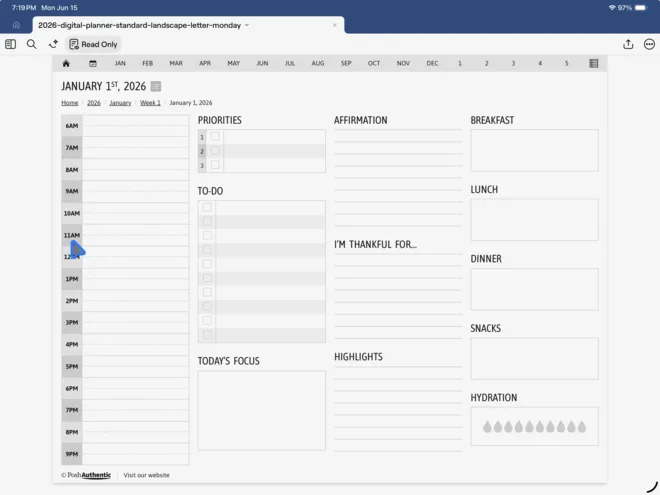
Click “Yes” in the “External Link” confirmation.
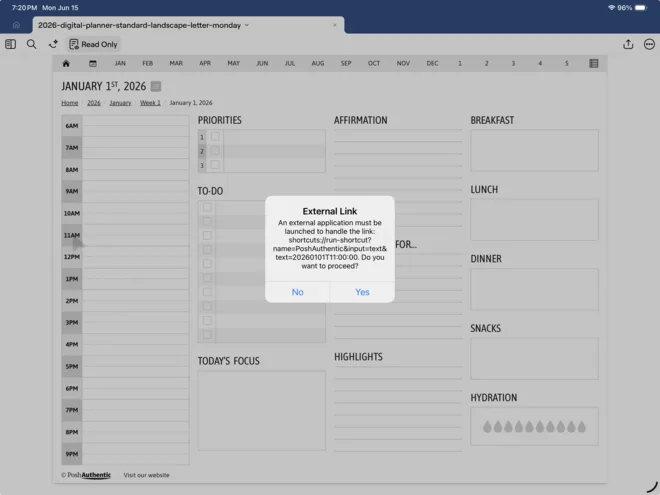
Click “Add event to Google Calendar”.
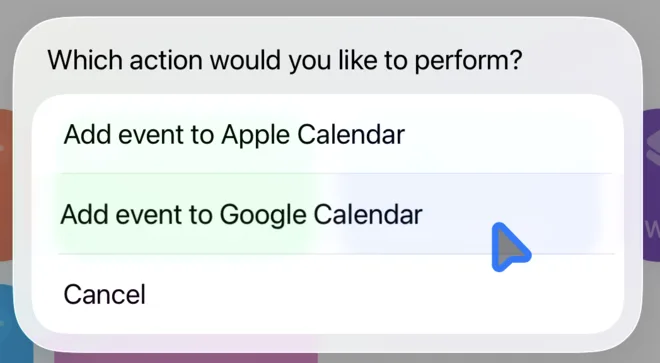
In the confirmation dialog, click “OK”.
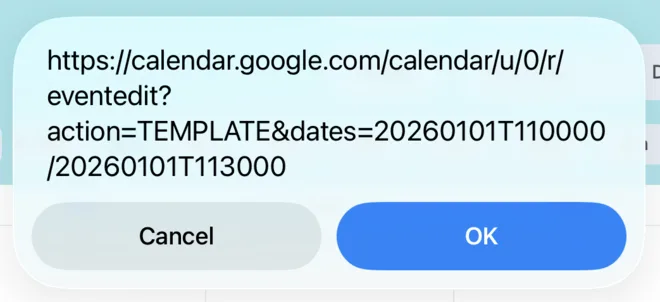
In the Google event modal, enter the required details for your event and then click the “Save” button to complete the process of adding your event to the Google calendar.
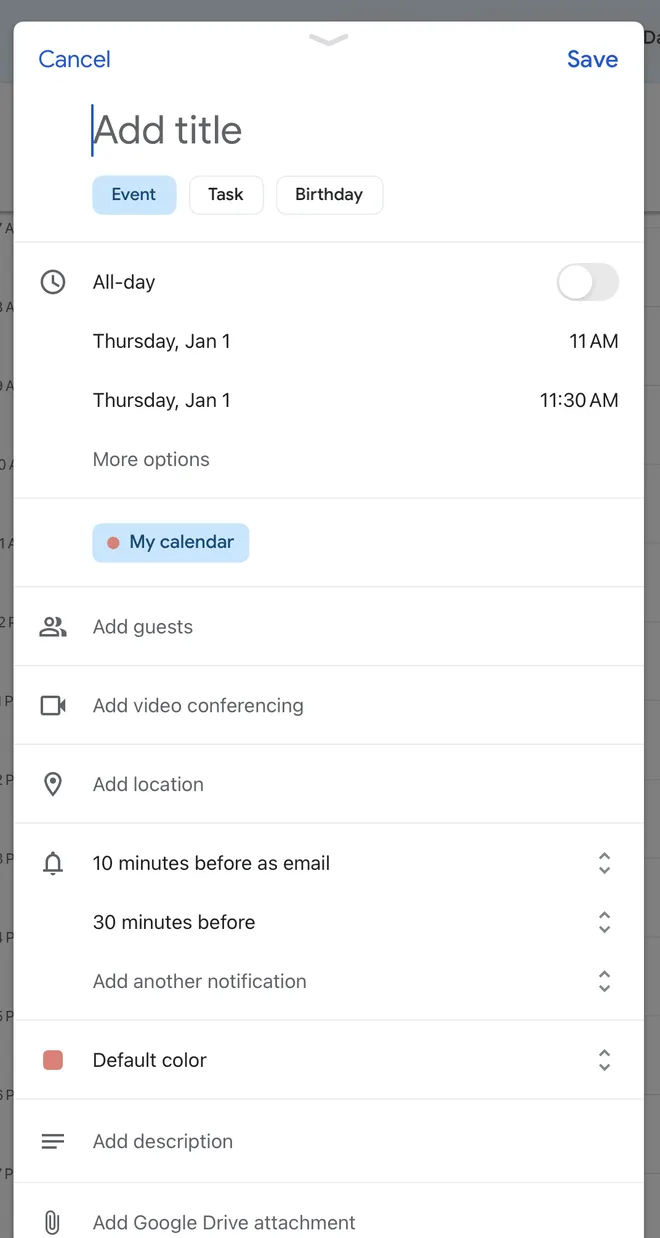
The external-link prompt appears every time you do this. That’s iPadOS being careful about a PDF opening something, not a sign that anything is wrong.
Adding an event to Apple Calendar
Same starting point, different destination. Tap an hour, confirm the prompt, and choose Add event to Apple Calendar. Fill in the event in the sheet that opens, tap the check, and it’s saved.
Apple Calendar IntegrationShow 4 steps, 4 screenshots
On any calendar day planner page you’ll find an hourly event planner. Click any of the hours to begin the process of adding a calendar event to either Apple or Google calendars.
Click “Yes” in the “External Link” confirmation.
Click “Add event to Apple Calendar”.
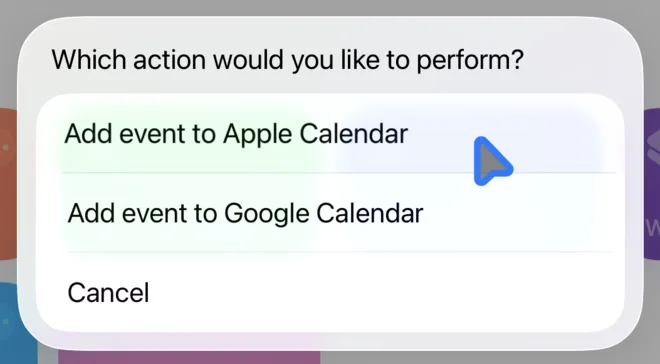
In the “New Event” modal, enter the required details for your event and then click the check button to complete the process of adding your event to the Apple calendar.
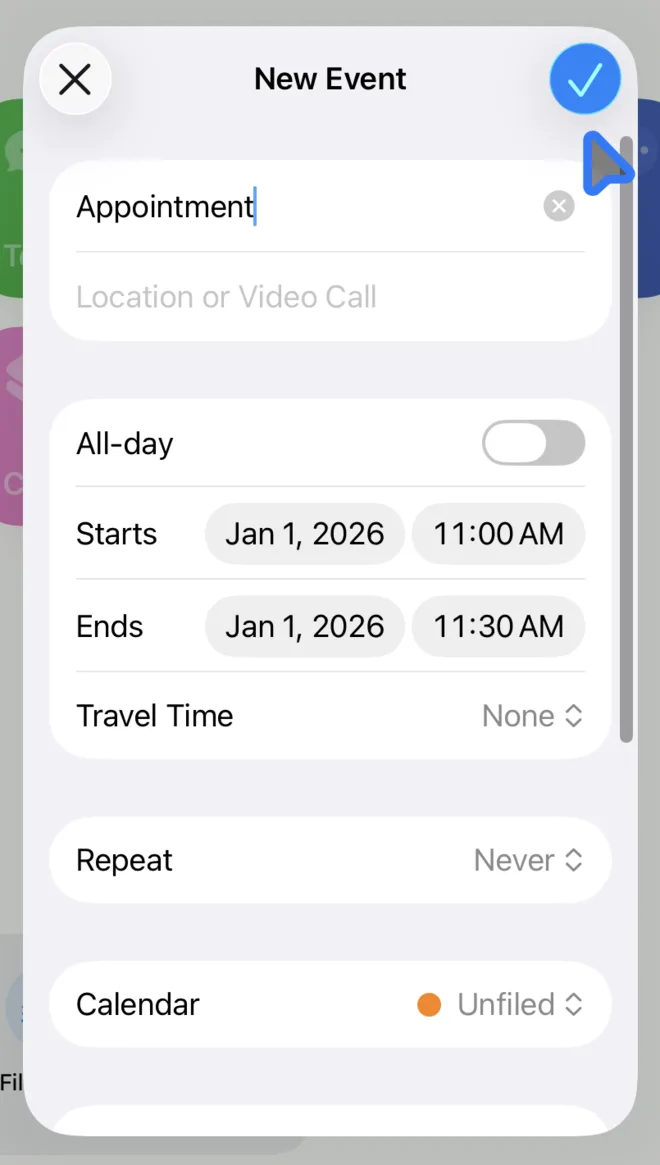
Both calendars work from the same tap, so you don’t have to decide up front which one you’re a household of. Outlook isn’t supported.
Adding a reminder
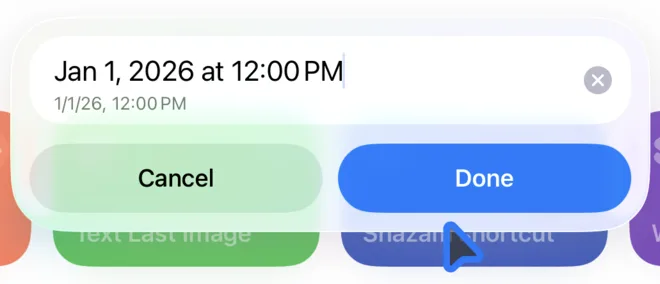
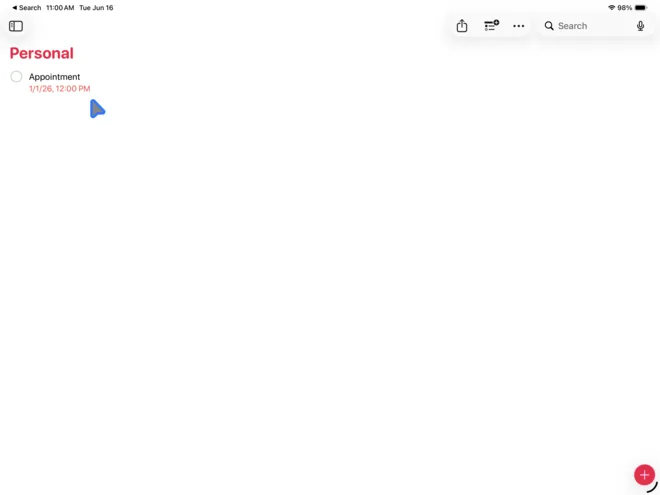
Every daily page also has a reminder icon, which goes to Apple Reminders rather than a calendar. Tap it, confirm the prompt, type the reminder, and pick which list it belongs in. Set a date and time, tap Done, and it’s in Reminders alongside everything else you keep there.
Apple Reminders IntegrationShow 7 steps, 7 screenshots
On any calendar day planner page you’ll find a Reminder icon. Click it to begin the process of adding a Reminder to Apple Reminders.
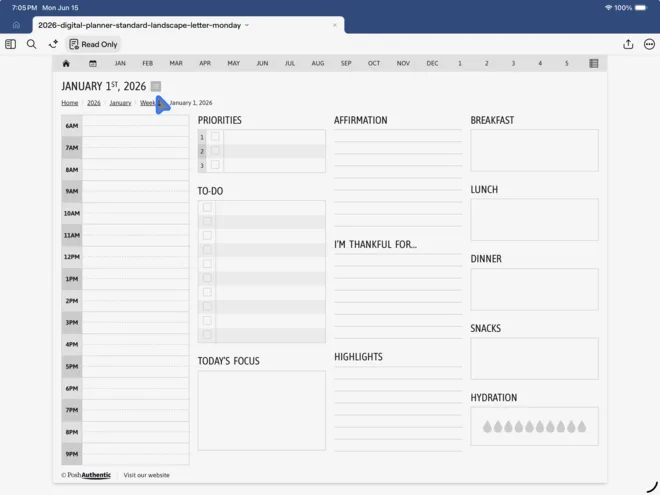
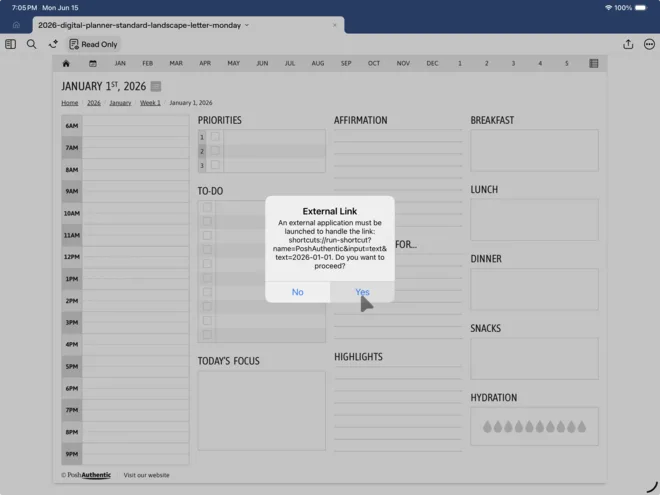
Once you’ve clicked the Reminder icon, you’ll be presented an “External Link” confirmation. Go ahead and click “Yes”.
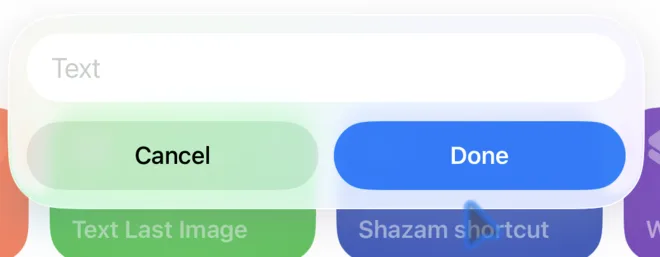
Enter a text value for your reminder.
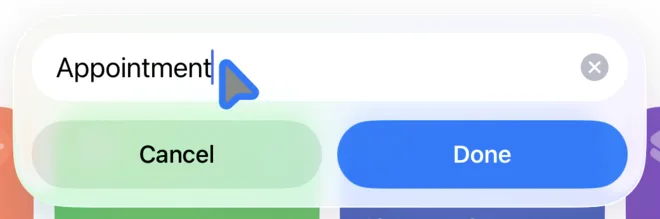
Once a reminder text value has been entered, click “Done”.
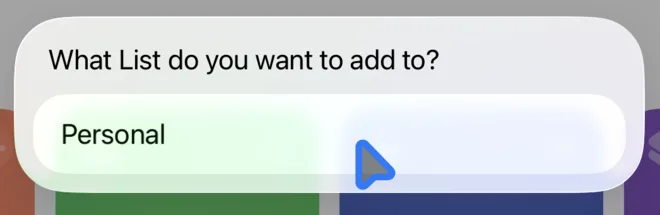
Choose which Reminder list you’d like to add the reminder to. There will be more than one list listed here, if you have more than one.
Customize the date & time and click “Done”.
Once complete, your reminder will be added to your Reminders list.
If nothing happens when you tap
Three things to check.
The Shortcut may not be installed — that’s the usual one, and it’s a one-minute fix from your download PDF. You might be in a plain PDF reader rather than a note-taking app, in which case none of the planner’s links work, calendar or otherwise. Or you might be on something other than an iPad, where the Shortcut doesn’t exist.
If all three check out and it still sits there, message us with a screenshot.
Where to go next
- Choosing a digital planner — what else to weigh up before you buy
- How to use a digital planner — the short version, and the three things that have to be true
- Setting up a digital planner on iPad
- Using your planner in GoodNotes
- Noteshelf and Noteful